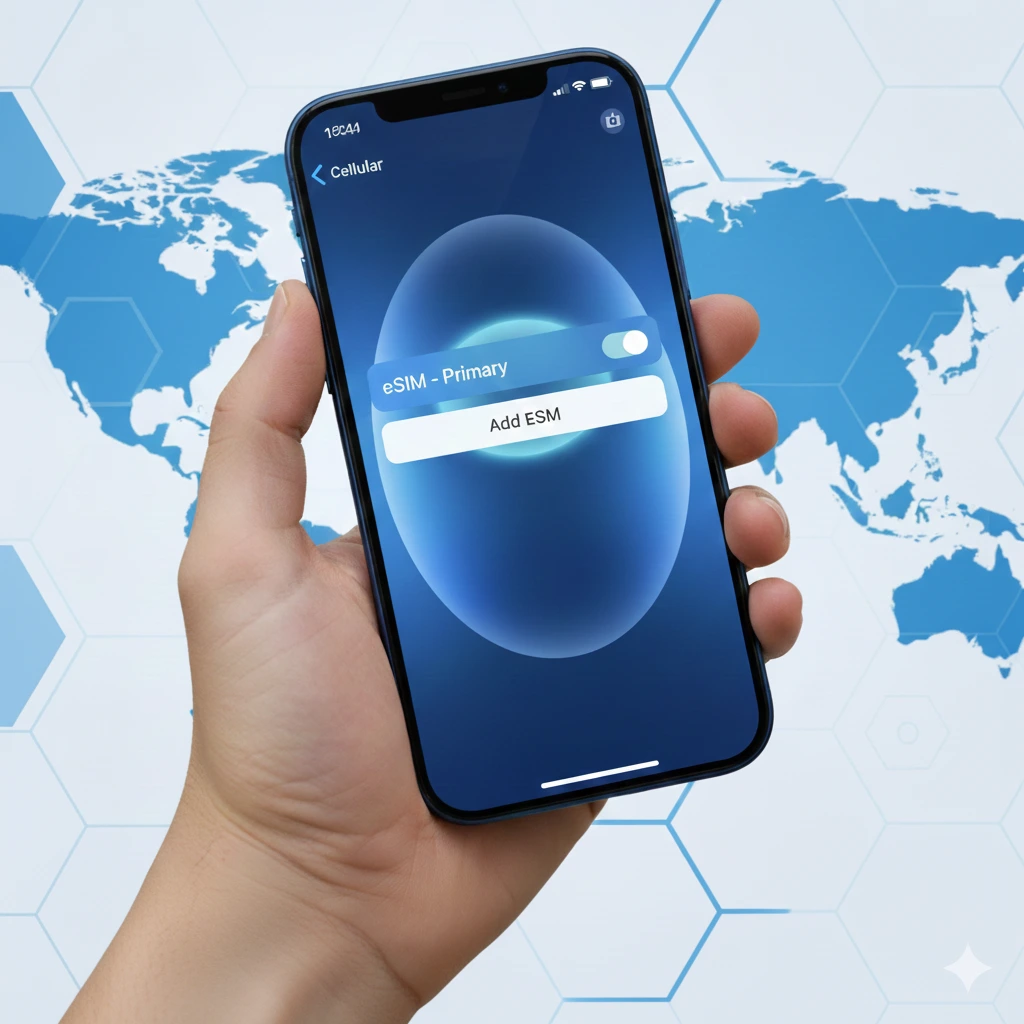
The Apple iPhone 13 series, encompassing the iPhone 13, iPhone 13 mini, iPhone 13 Pro, and iPhone 13 Pro Max, marked a significant stride in mobile technology, not just with its powerful A15 Bionic chip and advanced camera systems, but also with its robust support for eSIM. For many users, the concept of a digital SIM card is still relatively new, but it represents the future of mobile connectivity, offering unparalleled flexibility and convenience. This in-depth article will explore everything you need to know about the iPhone 13 eSIM, from its benefits and activation to troubleshooting common issues, ensuring you can harness the full potential of your device.
🌐 What is an eSIM and Why Does it Matter for iPhone 13?
At its core, an eSIM (embedded Subscriber Identity Module) is a digital SIM card that allows you to activate a cellular plan from your carrier without needing a physical nano-SIM card. Instead of swapping tiny plastic cards, your cellular plan is provisioned digitally onto a chip permanently built into your iPhone 13.
The Evolution of SIM Technology
For decades, SIM cards have been a physical staple of mobile phones. From the credit card-sized SIMs of early GSM phones to the micro and nano SIMs of modern smartphones, the fundamental concept remained the same: a removable chip identified your subscriber information to the network.
eSIM represents the next leap. It’s not just about convenience; it’s about enabling a new paradigm of mobile connectivity. For iPhone 13 users, this translates to:
- Dual SIM Capability: The iPhone 13 series supports Dual SIM with eSIM and a physical nano-SIM, or Dual eSIM (for models without a physical SIM slot, particularly in some regions or future models). This allows you to have two active phone numbers on a single device—perfect for separating work and personal lines, or managing a local and international plan.
- Enhanced Security: An eSIM cannot be physically removed, making it more difficult for thieves to instantly disable tracking or switch out your number if your phone is stolen.
- Travel Convenience: Switching carriers or activating a local plan when traveling internationally becomes incredibly simple. No more hunting for local SIM card vendors or dealing with fiddly installations. Just download a new profile.
- Environmental Benefits: Reducing the production and distribution of plastic SIM cards contributes to a more sustainable tech ecosystem.
- Space Saving: Eliminating the physical SIM tray allows phone manufacturers to potentially utilize that internal space for other components or improved sealing against water and dust.
The seamless integration of eSIM on iPhone 13 highlights Apple’s commitment to future-proofing its devices and enhancing user experience, a core principle in all tech advancements, much like the detailed guides you find on Apple’s official support pages.
🚀 Activating eSIM on Your iPhone 13: A Step-by-Step Guide
Activating an eSIM on your iPhone 13 is a straightforward process, though the exact steps can vary slightly depending on your carrier. Generally, there are a few common methods:
1. eSIM Carrier Activation (Most Common)
Many carriers now offer “eSIM Carrier Activation” where your new iPhone 13 will be automatically assigned an eSIM during the initial setup process.
- New Device: When you turn on your new iPhone 13, you might be prompted to “Set Up Cellular” or see a message about a “Cellular Plan Ready to Be Installed.” Follow the on-screen instructions.
- Existing Device: If you’re adding an eSIM to an existing iPhone 13, your carrier might push the profile directly to your device. Look for notifications like “Finish Setting Up Cellular.”
2. QR Code Activation
This is a widely used and reliable method for activating an eSIM on iPhone 13, especially when setting up a new line or a travel eSIM.
- Receive QR Code: Your carrier or eSIM provider will give you a QR code (either printed or emailed).
- Go to Settings: On your iPhone 13, navigate to
Settings > Cellular > Add Cellular Plan. - Scan QR Code: Your camera will open. Scan the QR code provided.
- Confirm & Label: Follow any additional prompts to confirm the plan and label your new cellular plan (e.g., “Personal,” “Work,” “Travel”).
3. Manual Entry
In some cases, if you can’t scan a QR code, you might need to enter details manually.
- Go to Settings:
Settings > Cellular > Add Cellular Plan. - Enter Details Manually: Choose “Enter Details Manually” and input the SM-DP+ Address, Activation Code, and Confirmation Code provided by your carrier.
4. Carrier Apps
Some carriers offer the ability to activate and manage your eSIM directly through their dedicated mobile applications. Check your carrier’s app for specific instructions.
Important Considerations:
- Wi-Fi Connection: Ensure your iPhone 13 is connected to a strong Wi-Fi network during the activation process.
- Carrier Compatibility: Not all carriers support eSIM for all plans. Always confirm with your provider if you intend to use eSIM with your iPhone 13. You can find a list of carriers supporting eSIM on Apple’s website.
- Unlocking: If your iPhone 13 is locked to a specific carrier, you may not be able to activate an eSIM from a different provider until it’s unlocked.
🔄 Managing Multiple Cellular Plans with iPhone 13 eSIM (Dual SIM)
One of the most powerful features of eSIM on iPhone 13 is its Dual SIM capability. This allows you to effectively use two phone numbers simultaneously on a single device, leveraging either an eSIM and a physical SIM, or two eSIMs.
How Dual SIM Works
Your iPhone 13’s Dual SIM functionality operates by allowing you to:
- Make and Receive Calls/Messages: Use either number for calls and texts.
- Choose Default Line: Designate one line as your primary for calls, messages, and cellular data.
- Specific Contact Assignment: Assign specific contacts to a particular line so that calls and messages to them always use that line.
- Switch Data Lines: Easily switch which cellular plan is used for mobile data.
Setting Up Dual SIM:
- Activate Both Plans: Ensure both your physical SIM (if applicable) and eSIM are active on your iPhone 13.
- Label Your Plans: Go to
Settings > Cellular. You’ll see your cellular plans listed. Tap each one to assign a descriptive label (e.g., “Primary,” “Secondary,” “Business,” “Travel”). These labels will appear in Contacts, Messages, and Phone for easy identification. - Choose Default Line: Tap “Default Voice Line” and select which line you want to use for outgoing calls and messages to contacts not assigned to a specific line.
- Choose Cellular Data Line: Tap “Cellular Data” and select which line your iPhone 13 will use for internet access. You can also allow “Allow Cellular Data Switching,” which lets your iPhone automatically switch to the other line if your primary data line has poor coverage. This is a very useful feature to maintain consistent internet access.
Use Cases for Dual SIM with iPhone 13 eSIM:
- Business & Personal: Keep your work number separate from your personal number on one device.
- International Travel: Use your home plan for calls and texts while using a local eSIM for affordable data in a foreign country. Companies like [suspicious link removed] for travelers.
- Cost Optimization: Use one plan for cheap calls and another for a data-heavy plan.
✈️ iPhone 13 eSIM for International Travel: The Ultimate Convenience
For frequent travelers, the iPhone 13 eSIM is a game-changer. Gone are the days of fiddling with tiny SIM cards in airport kiosks or paying exorbitant roaming fees.
Benefits for Travelers:
- Instant Local Connectivity: Purchase and activate an eSIM for your destination country before you even land. You’ll have local data and often calls/texts as soon as you arrive.
- Keep Your Home Number Active: With Dual SIM, you can keep your home number active to receive important calls or texts (potentially on Wi-Fi calling) while using the eSIM for affordable local data.
- Cost-Effective: Travel eSIMs are often significantly cheaper than international roaming packages offered by home carriers.
- No Physical Hassle: No need to handle small, easily lost SIM cards or use a SIM ejector tool.
- Flexibility: Easily switch between different regional eSIMs if you’re visiting multiple countries.
How to Use iPhone 13 eSIM for Travel:
- Research eSIM Providers: Before your trip, look for reputable eSIM providers for your destination. Many companies specialize in travel eSIMs, such as Commbitz.
- Purchase a Plan: Select a data package (and call/text if needed) for your travel duration.
- Receive QR Code/Activation Details: The provider will usually send you an email with a QR code or manual activation details.
- Activate on iPhone 13: Follow the QR code activation steps (
Settings > Cellular > Add Cellular Plan). - Label & Manage: Label your travel eSIM (e.g., “France Data”) and set it as your cellular data line when abroad. You can keep your home line active for calls or turn off data roaming for it.
Troubleshooting common iPhone 13 eSIM Issues
While eSIM on iPhone 13 is generally reliable, you might encounter a few hiccups. Here’s how to troubleshoot common problems:
1. eSIM Not Activating
- Check Wi-Fi: Ensure you have a stable Wi-Fi connection during activation.
- Carrier Support: Verify that your carrier or eSIM provider supports eSIM activation for your specific plan and region.
- QR Code Validity: Ensure the QR code hasn’t expired or been used before.
- Reboot: Sometimes, a simple restart of your iPhone 13 can resolve activation issues.
- Contact Support: If problems persist, contact your carrier or eSIM provider’s support team. They can remotely diagnose issues or re-send activation profiles.
2. No Service or Poor Signal
- Check Cellular Data Settings: Go to
Settings > Cellularand ensure your eSIM plan is enabled and selected for cellular data (if that’s your intended data line). - Airplane Mode Toggle: Toggle Airplane Mode on and off (
Settings > Airplane Mode) to force a reconnection to the network. - Network Selection: Go to
Settings > Cellular > [Your eSIM Plan] > Network Selection. Try toggling “Automatic” off and manually selecting your carrier’s network. - Software Update: Ensure your iPhone 13 is running the latest iOS version, as updates often include modem firmware improvements.
- APN Settings: In rare cases, especially with some MVNOs or travel eSIMs, you might need to manually configure APN (Access Point Name) settings. Your carrier or eSIM provider will give you these details if necessary. (
Settings > Cellular > [Your eSIM Plan] > Cellular Data Network).
3. Deleting an eSIM
If you no longer need an eSIM profile (e.g., after a trip), you can easily remove it from your iPhone 13.
- Go to
Settings > Cellular. - Tap on the eSIM plan you wish to remove.
- Scroll down and tap “Remove Cellular Plan.”
- Confirm your choice.
Note: Removing an eSIM plan does not automatically cancel your service with the carrier. You may still need to contact them to officially terminate your account or plan, especially for monthly subscriptions.
❓ iPhone 13 eSIM: Frequently Asked Questions (FAQs)
Here are answers to some of the most common questions about using eSIM on your iPhone 13 series device.
Q1: Is the iPhone 13 compatible with eSIM?
A: Yes, all models in the iPhone 13 series (iPhone 13, iPhone 13 mini, iPhone 13 Pro, and iPhone 13 Pro Max) fully support eSIM technology. They support Dual SIM with one physical nano-SIM and one eSIM, or with Dual eSIM.
Q2: Can I use two eSIMs on my iPhone 13?
A: Yes, iPhone 13 models support Dual eSIM, meaning you can have two active eSIM profiles simultaneously without needing a physical SIM card. This is especially prevalent in newer models or specific regional variants.
Q3: What’s the difference between eSIM and a physical SIM?
A: A physical SIM is a removable plastic card you insert into your phone. An eSIM is a digital SIM profile embedded in your phone’s hardware. Functionally, they both connect you to a cellular network, but eSIM offers more flexibility, particularly for dual-SIM use and international travel.
Q4: Does using eSIM drain battery faster on iPhone 13?
A: In general, using an eSIM does not significantly impact battery life compared to a physical SIM. However, using Dual SIM functionality (two active lines) might lead to a slightly increased battery consumption as your phone is constantly managing two network connections. The actual impact is usually minimal.
Q5: Can I transfer my eSIM from my old iPhone to my new iPhone 13?
A: Yes, in many cases, you can transfer your eSIM. With iOS 16 and later, Apple introduced “eSIM Quick Transfer” which allows you to transfer an eSIM from a previous iPhone to a new one during setup, or later via Settings > Cellular > Add Cellular Plan. Your carrier must support this feature, and it’s always best to check with them directly.
Q6: What if my iPhone 13 is locked to a specific carrier?
A: If your iPhone 13 is carrier-locked, you can only activate an eSIM from that specific carrier. To use an eSIM from a different provider (e.g., a travel eSIM), your iPhone 13 must be unlocked. Contact your current carrier to inquire about unlocking policies and eligibility.
Q7: Is eSIM safe and secure?
A: Yes, eSIM technology is very secure. It adheres to industry-standard security protocols. In some ways, it can be more secure than a physical SIM, as it cannot be physically removed from a lost or stolen device, which helps with tracking and preventing unauthorized use of your number.
Q8: Can I switch between my eSIM and physical SIM easily on my iPhone 13?
A: Absolutely. Your iPhone 13’s Settings > Cellular menu makes it very easy to manage and switch between your active cellular plans. You can choose which line is default for calls, messages, and cellular data with just a few taps.
Q9: Where can I find a list of carriers that support eSIM for iPhone 13?
A: Apple provides an updated list of worldwide carriers and service providers that support eSIM. You can find this list on Apple’s support website. It’s always advisable to verify directly with your chosen carrier.
Q10: What happens if I reset my iPhone 13? Will my eSIM be deleted?
A: When you factory reset your iPhone 13, you’ll typically be given the option to “Erase All Content and Settings” and either “Keep Cellular Plans” or “Remove Cellular Plans.” If you choose to remove them, your eSIM profile will be deleted. If you choose to keep them, they might remain, but it’s often safer to re-activate them after a full reset. Always back up your phone before a reset, and have your eSIM activation details handy.
💡 The Future is Digital: Embracing iPhone 13 eSIM
The iPhone 13 eSIM is more than just a feature; it’s a testament to the ongoing digitalization of mobile technology. It offers unparalleled convenience, especially for dual-SIM users and international travelers, making managing multiple cellular plans simpler than ever before. As more carriers worldwide embrace eSIM, its benefits will only grow, solidifying its place as the standard for future mobile connectivity.
By understanding how to activate, manage, and troubleshoot your eSIM on iPhone 13, you can unlock a new level of flexibility and efficiency, ensuring you stay connected, wherever life takes you. For further details on iOS features and device management, consider exploring Apple’s official iPhone User Guide.
Commbitz is highly beneficial for the iPhone 13 by leveraging its dual-SIM capability to provide instant, affordable global data without removing your home physical SIM or incurring expensive roaming charges.